Osmc > Raspberry Pi & tv dongle...

A

Archive-8

Guest
Installed osmc on my spare Pi, then I installed samba server and tvheadend server.

Plugged in a spare tv dongle and in less than 2 mins i was scanning in channels via my tv aerial.

Going to play a bit more with it tomorrow :oops:


Don’t know if it will replace my hdhomerun.
 
Don't wear it out ;)
 
To configure tvheadend once installed via the “my osmc” option is really simple.

Go to your ip address of the Pi eg 192.168.x.x:9981

Username: osmc
Password: osmc
 
Last edited by a moderator:
I did not have to install any drivers using these dongles:-

96BED88E-8419-479B-90E1-C516A14D56E0.webp 45A5337B-B20E-4E16-BA74-6064AB34BEA9.webp 3003D25C-9ADA-41E4-9797-666E3ABDDDDC.webp

It really was plug n play :D
 
The my osmc screen.

F5D2AAAD-772D-4DF6-B020-0906820FA06A.webp

The samba server & tvheadend are under the shopping cart icon.
 
Looks like this

8D9B0D76-8EE2-4B4E-B282-664EAC8A05FF.webp

Once all installed, reboot the Pi and go to the web interface.
 
Last edited by a moderator:
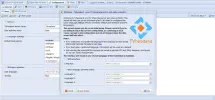
tvheadend setup wizzard:

select your language, and hit save & next.

1.webp
agree with the settings below and hit save and next.

2.webp

in the network 2 box pick dvb-t type.

3.webp

Like this one below

4.webp

Then hit save & next.

Then pick your local Freeview mux. (mines Stockland Hill) then hit save & next.

5.webp

If all went well it should be scanning in the channels now, see below.

6.webp
7.webp
8.webp

Once scanning is complete, hit save & next.

on the next screen tick all the boxes to map all services, create provider tags and create network tags, then hit save & next, see below.

9.webp
lastly hit finish.

10.webp

you have just setup tvheadend on the Raspberry Pi and tv dongle :D
 
Last edited by a moderator:
just click the program title you wish to view and a box should pop up like this

11.webp

Hit the play program button and a popup should appear like this.

12.webp
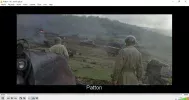
open the file with vlc to stream your channel.

13.webp 14.webp
 
Back
Top