VMA Stream Reader

So tell me: should I add an uncommitted mode that just outputs F0 to FF for ports 1-16?

How do common receivers manage all these differences?
My advice: You should do that, and you should also allow this to be combined with committed mode, usals, diseqc1.1 and in any order.
This is needed for people using many lnbs: e.g., you can comvine 1 committed 4x1 switch with 4 uncommitted 4x1 ones, or vice versa to
address 16 lnbs. You can also combine 1 committed 4x1 switch with 4 16x1 uncommitted switch to address up to 64LNBs (a bit overkill of course,
unless if you also switch between multiple dishes. It is also possibkle to combine this with diseqc1.2 and with usals. For example: a moving
dish can be combined with a switch (there are limits related to power consumption, but one rotor and one switch does work).

In all of this, it is important to send messages in the right order, wait long enough for voltage changes to be completed etc.

diseqc2.x are supported by many switches and also needed to configure (but not use) Jess, unicable and such.

In theory Jess, Unicable and such are multually exclusive with diseqc, but in reality they can be combined with that as well.
 
But for diseqc 1.1, the command byte should not be 38, but.... (I guess you know by now)
I confirm, the Byte must be 39h.


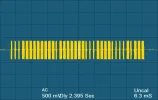
There are two errors on this command, the command 38 (Committed) instead of 39 (Uncommitted) and the wrong port "Input 4" instead of "Input 2"
DiSEqC_1.1_a.webp DiSEqC_1.1_b.webp

The commands for DiSEqC 1.1 are these:

E0 10 39 F0 = Input 1
E0 10 39 F1 = Input 2
E0 10 39 F2 = Input 3
E0 10 39 F3 = Input 4
E0 10 39 F4 = Input 5
E0 10 39 F5 = Input 6
E0 10 39 F6 = Input 7
E0 10 39 F7 = Input 8
E0 10 39 F8 = Input 9
E0 10 39 F9 = Input 10
E0 10 39 FA = Input 11
E0 10 39 FB = Input 12
E0 10 39 FC = Input 13
E0 10 39 FD = Input 14
E0 10 39 FE = Input 15
E0 10 39 FF = Input 16

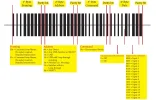
Edit: Added images of DiSEqC 1.0 and 1.1 protocol specifications:

DiSEqC_1.0.webp DiSEqC_1.1.webp
 
Last edited:
good morning
tried with Raw Frame with E0 10 39 F3 ( marcus21), it works, but with the autoScan it is always
very very slow and the frames are always repeated in the panel
ok1.webpok2.webp
 
Hello.

Thanks for all the feedback and input.

Please download and install the 2025-07-20 version again: https://vma-broadcast.com/wp-content/uploads/2025/04/VMA Video Analyser Setup - 2025-07-20.zip

This fixes the DiSEqC-1.1 Uncommited option to output 39 instead of 38.

Also, I fixed an error that slowed down Auto Scan considerably: it was simultaneously doing the Signal Analysis in an aggressive way (10x per second). I now switch off Signal Analysis during Spectrum Scan and Auto Scan. Now Auto Scan is again fast as before.

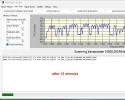
I added a textbox for Signal Analysis, that contains the time per minute of the chart. By entering i.e. 1440, it will take 24h to scroll one window, allowing better long term monitoring. I might add a logging to file later.

Regards,
Vitor
 
I apologize for the error; the incorrect command input was not "4" but "5."

I've added images of the DiSEqC 1.2 and Usal protocols, and fixed some errors in the 1.0 and 1.1 protocols.

As soon as I can I'll do some checks in the new version...

DiSEqC 1.0

DiSEqC_1.0.webp
DiSEqC 1.1

DiSEqC_1.1.webp

DiSEqC 1.2
DiSEqC_1.2_a.webp DiSEqC_1.2_b.webp DiSEqC_1.2_c.webp

Usals

Usals.webp
 
Last edited:
How important is USALS implementation? I don't have USALS (at least I think that my SG-2100A doesn't support it).
 
How important is USALS implementation? I don't have USALS (at least I think that my SG-2100A doesn't support it).
I don't use it, because I only have polar mounts with actuators... but I think that the majority of those who have diseqc rotors use it.
 
I think the DiSEqC-1.1 still has a bug, it seems I forgot to subtract 1, so all commands are shifted. Need to deal with this later.

And maybe add USALS.
 
I've added images of the DiSEqC 1.2 and Usal protocols, and fixed some errors in the 1.0 and 1.1 protocols.

Nice graphics!

Funny that in the USALS commands, in the 5th bit you use decimals, instead of the more accurate hexadecimals.
I even programmed my calculator to not truncate in the DEC.TO.HEX calculation, but to round properly. :)

However, the difference would be hardly noticeable, I think (same as calculating the rotation angle (hour angle) with more or less the modified motoraxis elevation angle, instead of the traditional motoraxis elevation angle: does hardly make a difference...).

Greetz,
A33
 
Wrong Post, please Remove:rolleyes:
 
I tried your program to see how it performs on feed-hunting
Let's take in example the 3 EBU feed on 7E which are very close to each other.
With the settings i used in the picture, VMA was able to blindscan all 3 EBU channels but it finds some double TP.
(This was the only way to find all 3 channels, otherwise at least 1 was missing)
Screenshot 2025-07-20 115559.webp
Can you please explain what the setting in the BS tab means?

Bye,
 
Last edited:
Please download and install the 2025-07-20 version again: https://vma-broadcast.com/wp-content/uploads/2025/04/VMA Video Analyser Setup - 2025-07-20.zip

This fixes the wrong port number on uncommitted DiSEqC-1.1.

It adds the final piece in Auto Scan: you can now select multiple satellites and have them automatically scanned. The results is saved and can be loaded back.

I decided to not implement USALS for now, as it requires a lot of GUI changes and trigonometry to calculate positions. I do have the code ready, but no way to test and nobody asked for it anyway.

I will do a manual later and explain the options in Auto Scan tab. Have to go now...
 
I tried your program to see how it performs on feed-hunting
Let's take in example the 3 EBU feed on 7E which are very close to each other.
With the settings i used in the picture, VMA was able to blindscan all 3 EBU channels but it finds some double TP.
(This was the only way to find all 3 channels, otherwise at least 1 was missing)
View attachment 163967
Can you please explain what the setting in the BS tab means?

Bye,
First, let me explain my algorithm:
It takes the spectrum, filters it and then it finds all "peaks" above the average spectrum level. The average spectrum level is used as a threshold, to avoid scanning peaks that are just noise. Instead of using a fixed value, by using the average spectrum level, I adjust to the general reception: some satellites might have poor reception with low amplitude, others good reception with high amplitude.

The Blindscan Settings mean this:

Relax Average Level: sometimes, the average spectrum level is too high and some peaks fall under it. This happens on satellites like Astra 19.2E with many transponders. This setting allows to adjust the average level up or down, in order to improve peak recognition.

Smooth Window; filters the spectrum. If you notice upon reloading a saved auto scan, the spectrum is smoother. A filter is applied averaging the specified number of points.

Threshold delta: ignore

Cluster span: this is the maximum peak width to be considered
 
I don't use it, because I only have polar mounts with actuators... but I think that the majority of those who have diseqc rotors use it.
Yes, and it is actually easier to implement as well.

On the other hand diseqc1.2 is useful for people for people with vboxes. It is also used by some switches as an alternative to
diseqc1.0 and 1.1 to support many inputs.
 
Just made a test run: Auto Scanned 19 satellites with 10 seconds wait for DiSEqC-1.2 to finish after each positioning.

1753047998788.webp

This took exactly 50 minutes to scan all 19 transponders in H/V.

I added a new Auto Scan Report tab:

1753048159025.webp

The aim is to sum-up all new found transponders, as well as "lost" transponders (= transponders no longer present).

Important note: only when using AUTO SCAN SATELLITES are the transponders/spectrum samples stored AUTOMATICALLY to the Auto Scan folder. AUTO SCAN SPECTRUM and AUTO SCAN H/V require MANUAL SAVE AUTO SCAN DATA. This is to avoid "cluttering" the folder with test scans - in case you want to have "clean" reports.

As a side note, notice how I configured my satellites:

1753048229534.webp
The "T1"or "T2" prefix allows me to identify and select satellites configured for Tuner 1 or Tuner 2.

The numbering 01-19 is done, so that the alphabetic sorting of the satellites causes the Auto Sat Scan to move the motor from furthest East position to furthest West position, minimizing rotating the dish back and forth. This allows to set a lower wait after each move command, plus it orders the satellites correctly. I could have just used the orbit position (0192 for Astra and 3300 for Hispasat), but somehow my brain does not like to see Hispasat as 3300...

Finally, I would like to point out, that you can save/load an Auto Scan. By loading it back in, the satellite name is set in the Stream Reader tab, the respective spectrum is shown and the transponder list is restored. You can then double click any transponder in the Auto Scan tab. This will open the Stream Reader tab, send the respective DiSEqC-command, set polarity and band, do a blind scan on the frequency. This acts as satellite channel plans - but for transponders.

Fire up VMA Transport Stream Analyser (or any other similar tool) and you are ready to see what this transponder is all about... (I added a Checkbox to define if VMA Transport Stream Analyser should be started automatically when clicking the START STREAMING button).

Transponders can be switched during streaming or constellation diagram rendering. No need to wait or stop streaming first. Of course, during constellation diagram rendering, streaming will lose packets.

1753049715476.webp
1753049725790.webp
1753049735955.webp

Download new version here: https://vma-broadcast.com/wp-content/uploads/2025/04/VMA Video Analyser Setup - 2025-07-21.zip
 
New version: https://vma-broadcast.com/wp-content/uploads/2025/04/VMA Video Analyser Setup - 2025-07-23.zip

This adds a "normal" brute force blind scan, where the frequency range is simply scanned using the defined increment. The search range should be half of the step size, but the software now filters repeated transponders, so you can leave a higher search range and won't get repeated transponders.

Also, I added a visualization of the search range: you will see two black lines left/right to the blind scan frequency - it is within this range that the search is done.
 
I think I finally have it right:

index.php


In my new version, if you select NORMAL BLIND SCAN and DX SCAN options (both), then this is done:

1) Quick spectrum scan (in this particular case with both checkboxes checked it is for visuals, mainly)
2) Blind scan from start frequence to stop frequence with a given increment (configured in settings)
3) For each frequency to test, a quick RF level is measured, if under the threshold value (MINIMUM RF LEVEL), we continue to the next frequency.
4) If above threshold, we do a new BLScan2() from -20 MHz to +20 MHz of the current frequency
5) If a transponder is found, we have the data to draw the fake transponder (orange) and we add the bandwidth of this transponder to the frequency, so we avoid blindscanning the same frequency range again (slow)

This allows to scan a satellite band in about 3-5 minutes (it depends on the amount of transponders - 19.2E takes a lot of time, 30.0W less).

I believe that this should now find the exact same transponders as IQmonitor.

Please test.

Download: https://vma-broadcast.com/wp-content/uploads/2025/04/VMA Video Analyser Setup - 2025-07-25.zip
 
Back
Top